7 awesome shortcuts every productive iOS developer must know
- 3 minsAs a developer, knowing your IDE is one very powerful key to being productive while you work. Building for iOS with XCode can be daunting at first but here are a few shortcuts to keep you productive and make you feel like a pro.
1. Open quickly any file (Shift + ⌘ + O)
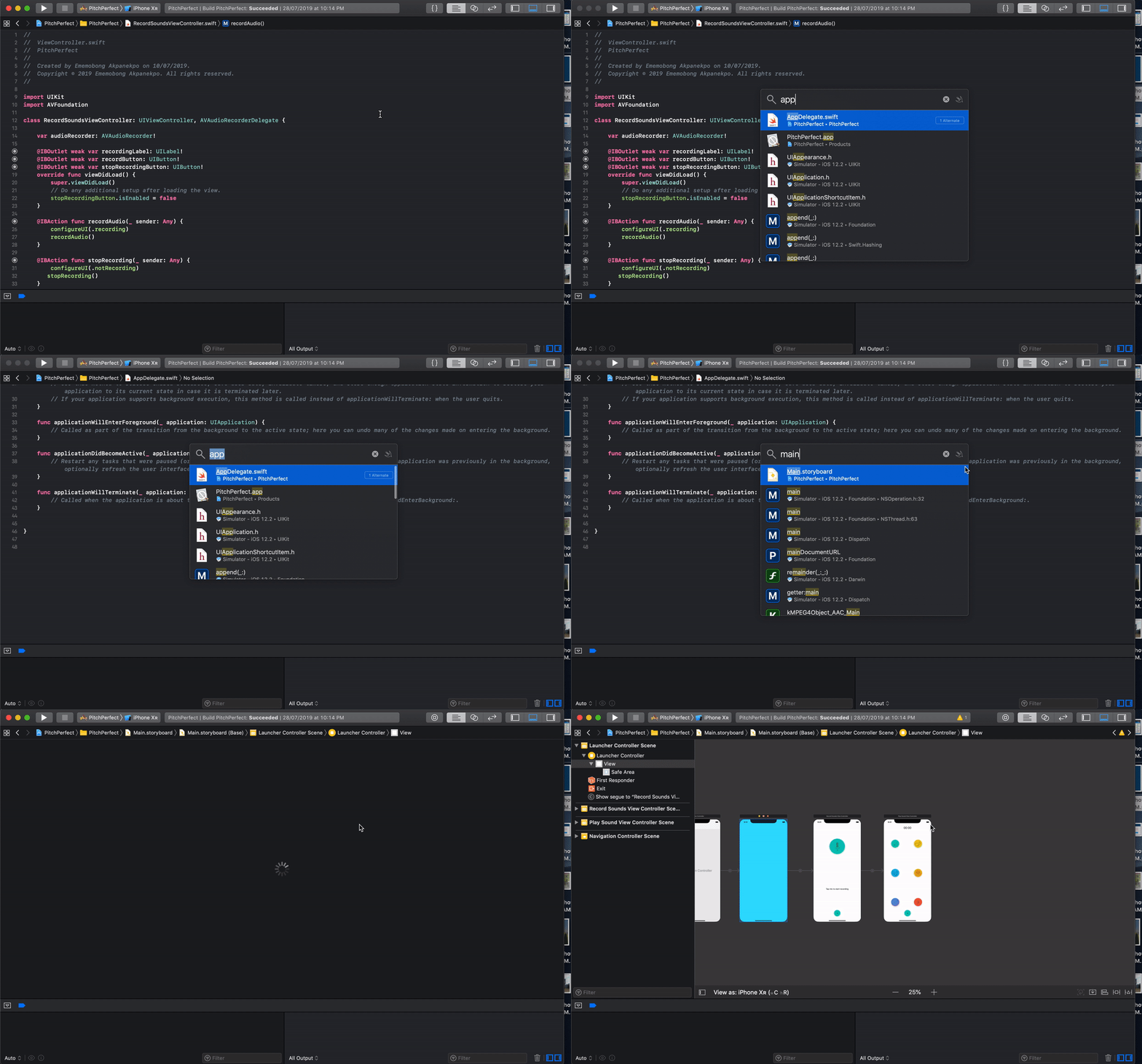
With this you can search and open virtually anything in your XCode project. Press Shift + ⌘ + O and the Open quickly dialog will pop up. Something like this: As you can see I searched for the AppDelegate file and main storyboard file for the project.
2. Hide/UnHide the Navigator Panel (⌘ + 0)
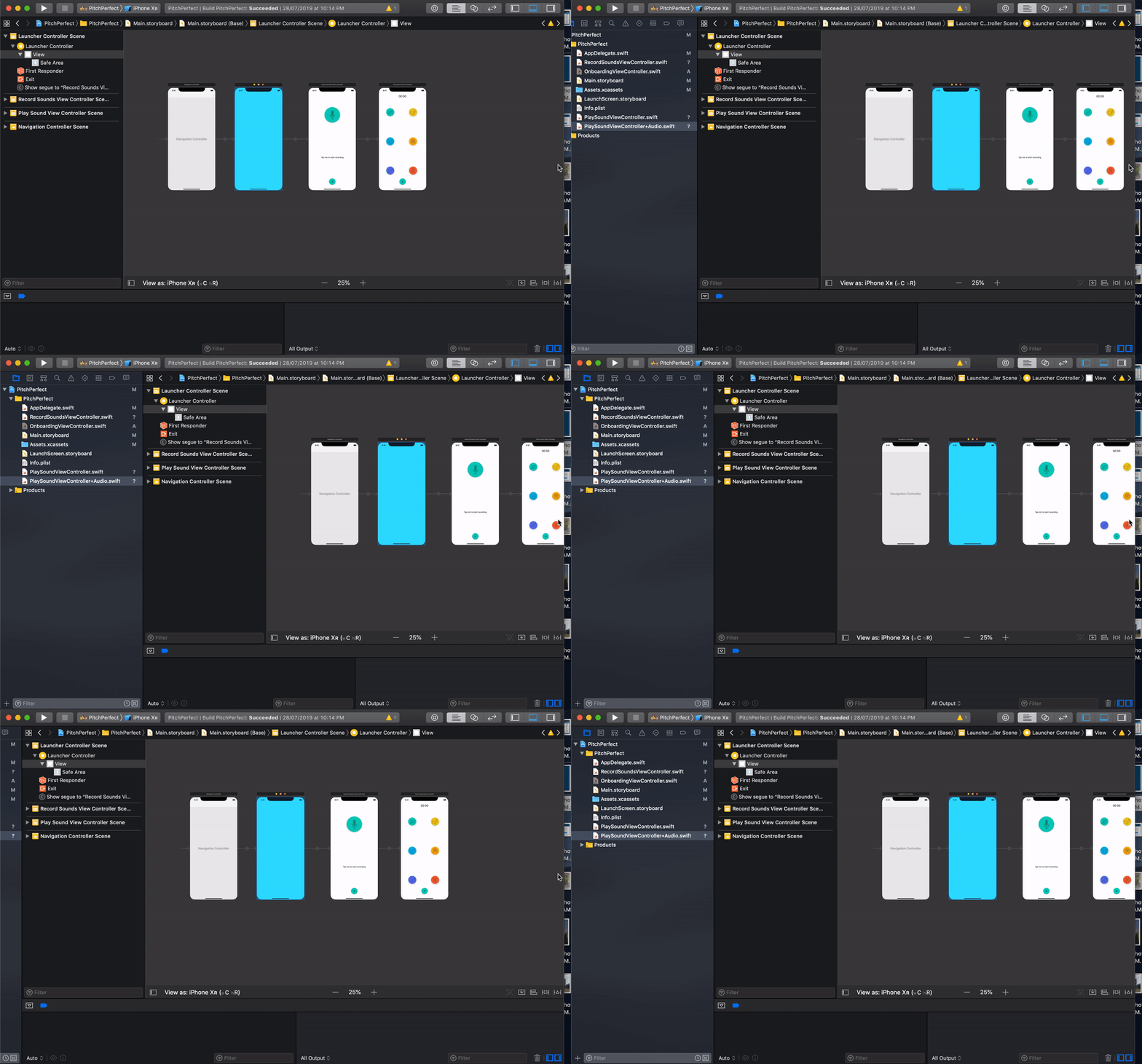
The Navigator Panel is located on the left side of XCode and helps you navigate around the project. But more often than not you need some more real estate for your content at the center so you can work effectively. Press ⌘ + 0 to hide/unhide the navigator panel.
3. Hide/Unhide the Utility area (⌥ + ⌘ + 0)
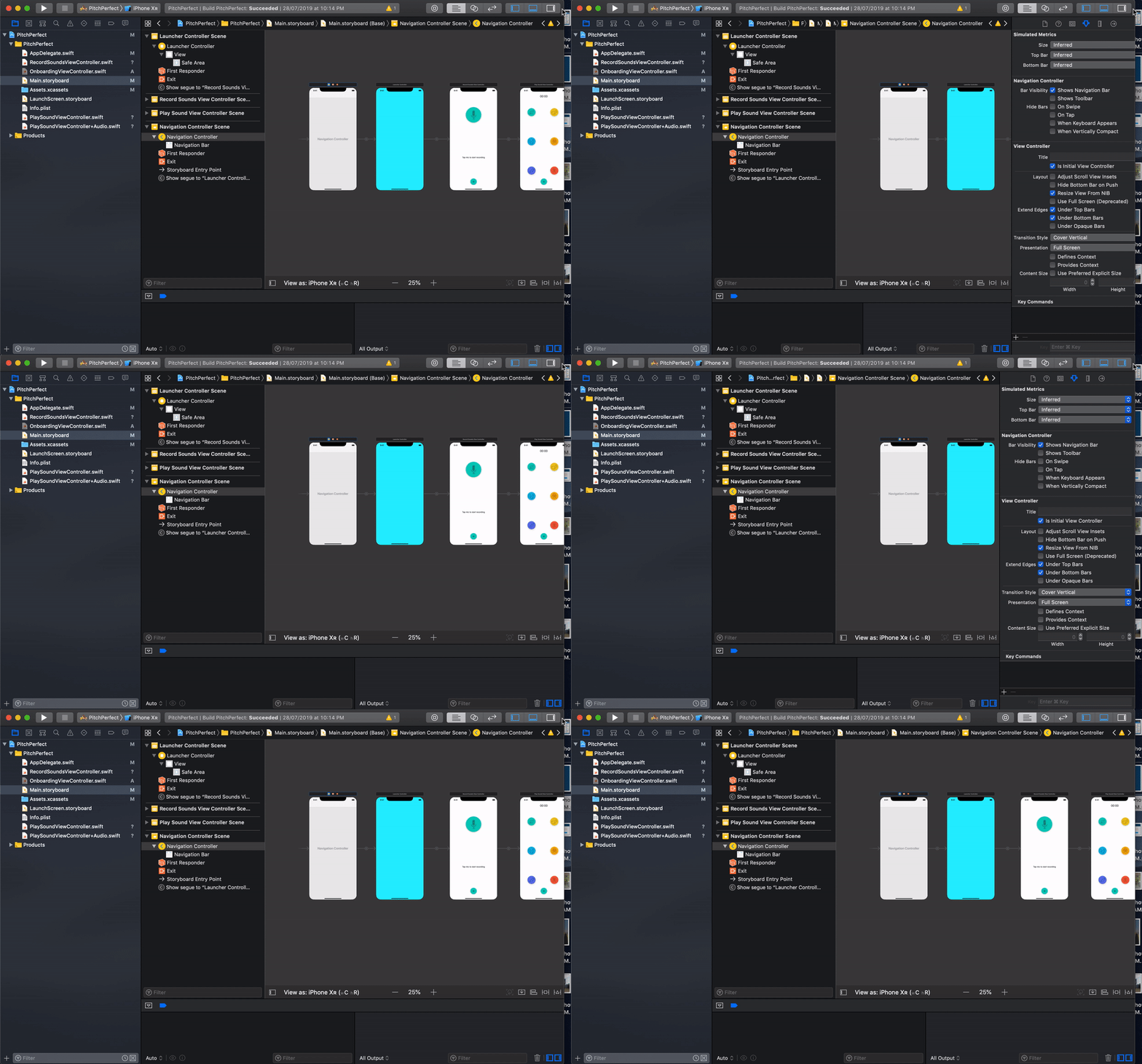
You can hide/unhide the Utility area to gain more space for your content at the center. The Utility area is located on the right side of XCode and contains different inspectors depending on which item is currently selected on the navigator panel. Press ⌥ + ⌘ + 0 to hide/unhide the utility area.
4. Quick Documentation (^ + ⌘ + ⇧ + ?)
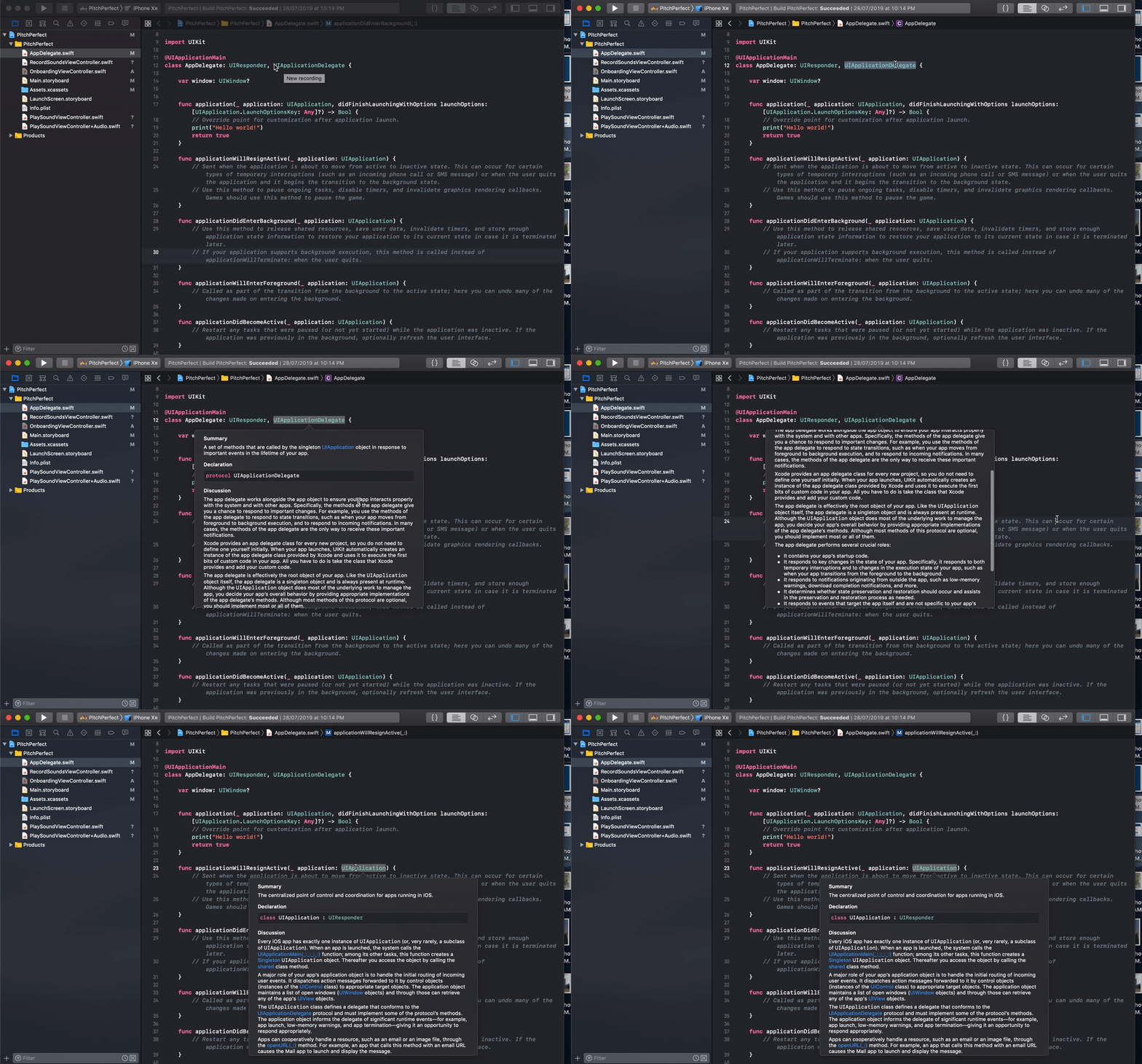
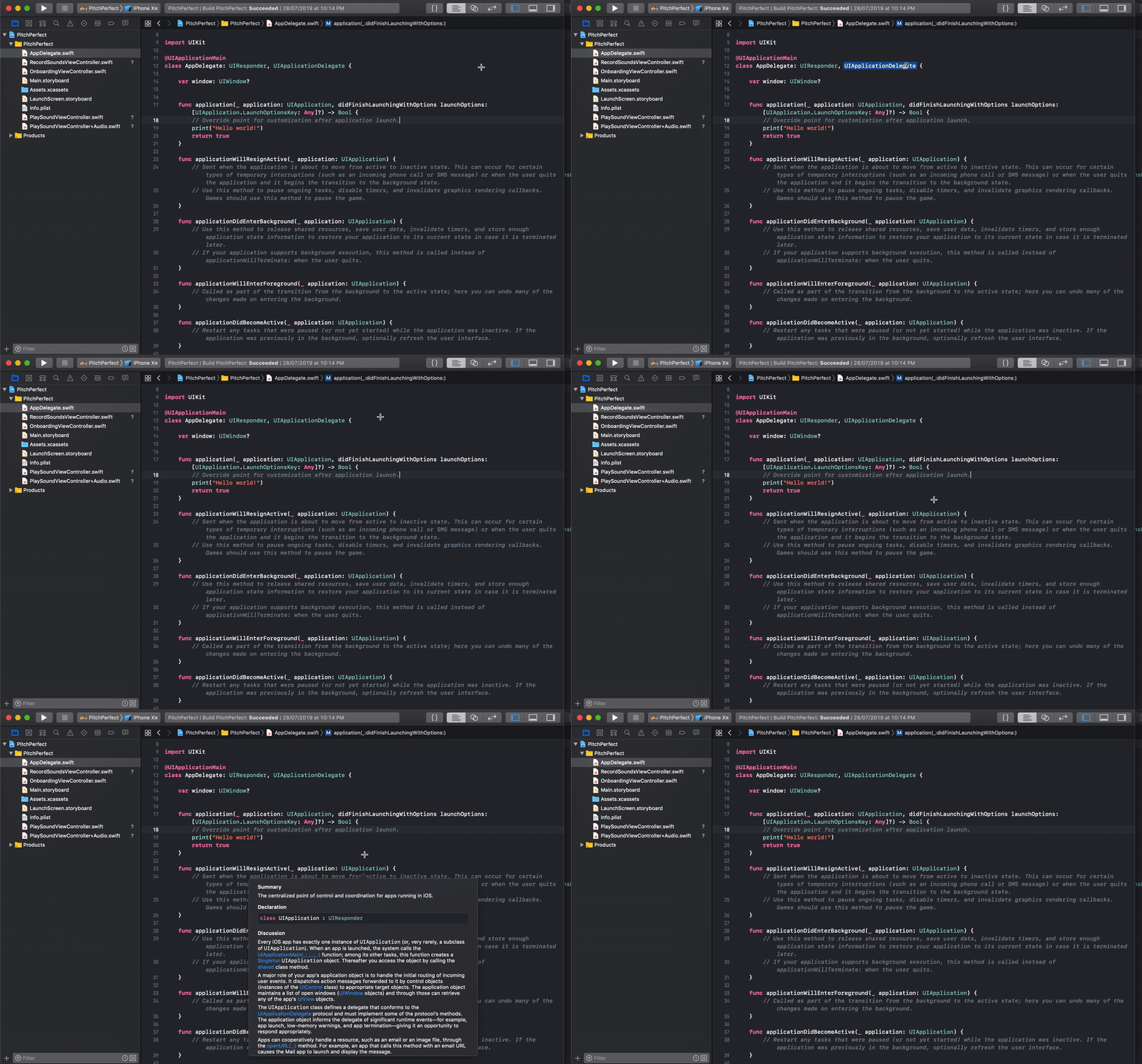
To quickly access documentation for any swift class. Highlight the required class and Press ^ + ⌘ + ⇧ + ?. You will be presented with a pop up dialog showing you the class documentation. This however requires internet connection.
Alternatively you can get there faster by pressing and holding the ⌥ key and then left clicking on any swift class. Once you press the ⌥ key, your cursor will change to a + icon, which you can move around. When it comes across any swift class it changes to a ? icon, then you can now left click on this class to view the documentation.
5. Reformat/Indent your code(^ + I)
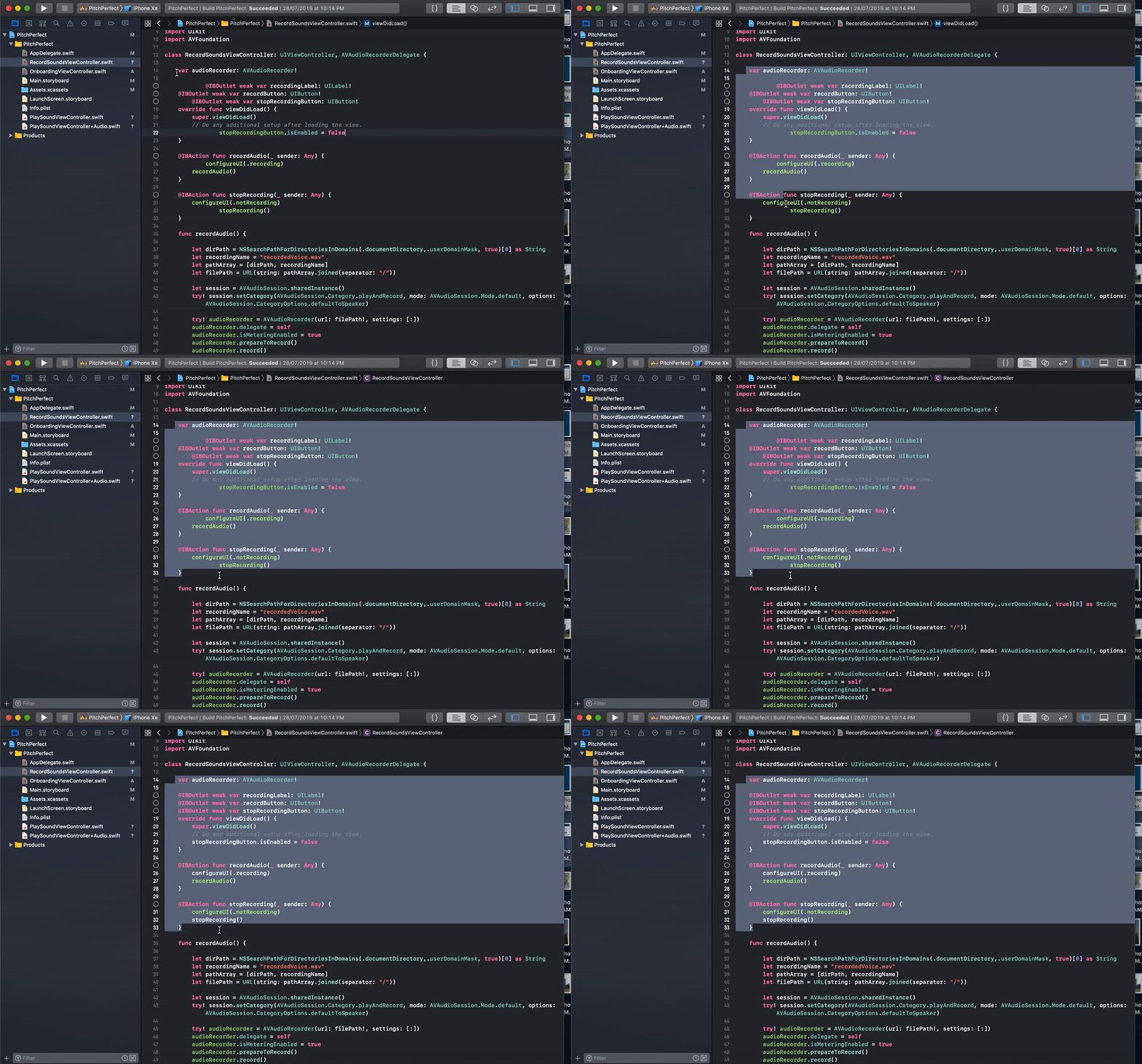
Unorganised code can be difficult to read and review. Save you future self and code reviewer needless stress by organising your code before you commit. There is no need to manually indent as XCode will indent it for you as per the style guide. Select the code area you want to format correctly and then Press ^ + I
6. Hide/Unhide the debug and console panel (⇧ + ⌘ + Y)
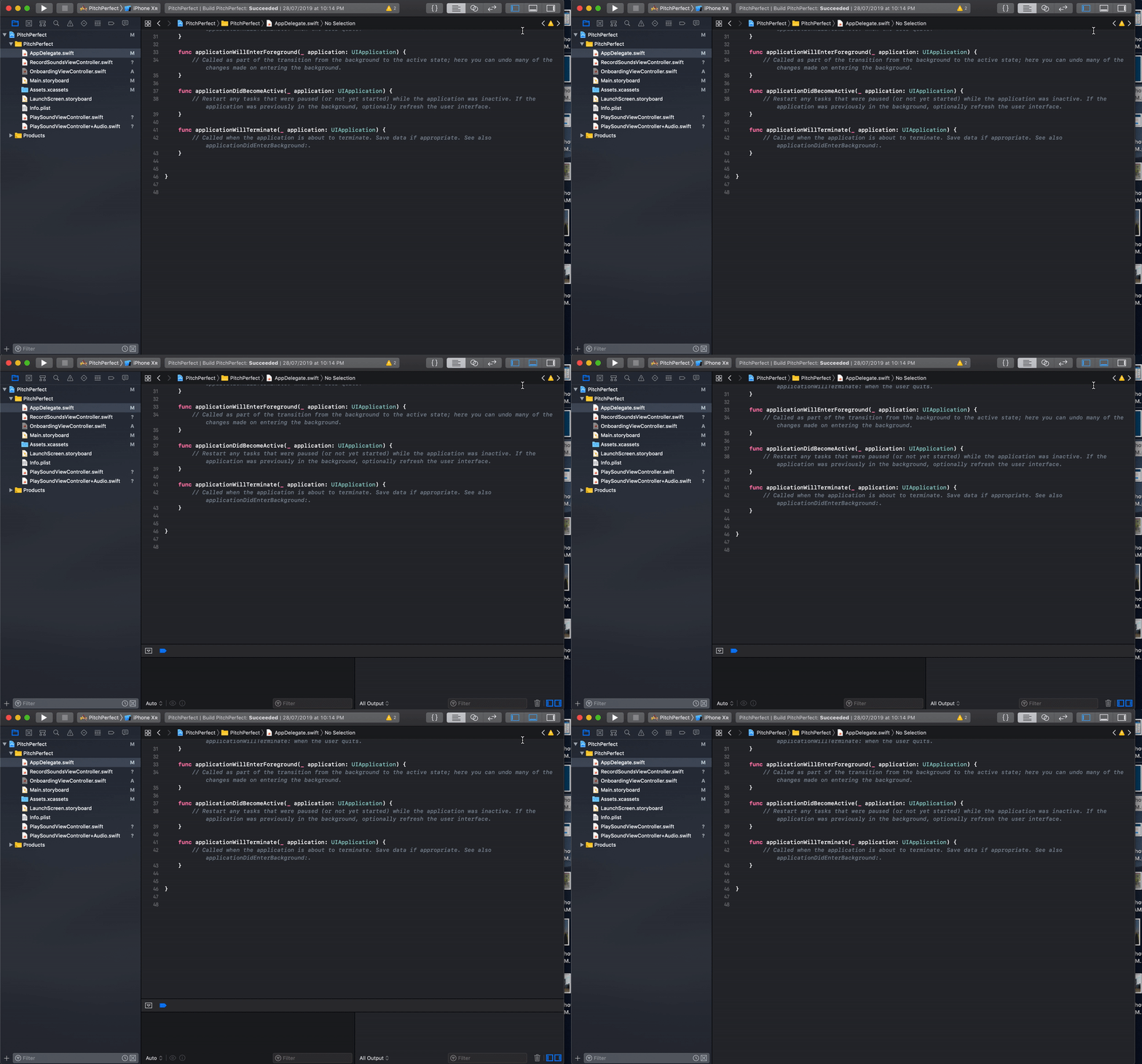
You can hide/unhide the debug and conosole panel to gain more space for your content at the center. The console panel is to the bottom right and the debug panel is to the bottom left. Press ⇧ + ⌘ + Y to hide/unhide the debug and console panel.
7. Make a quick commit (⌥ + ⌘ + C)
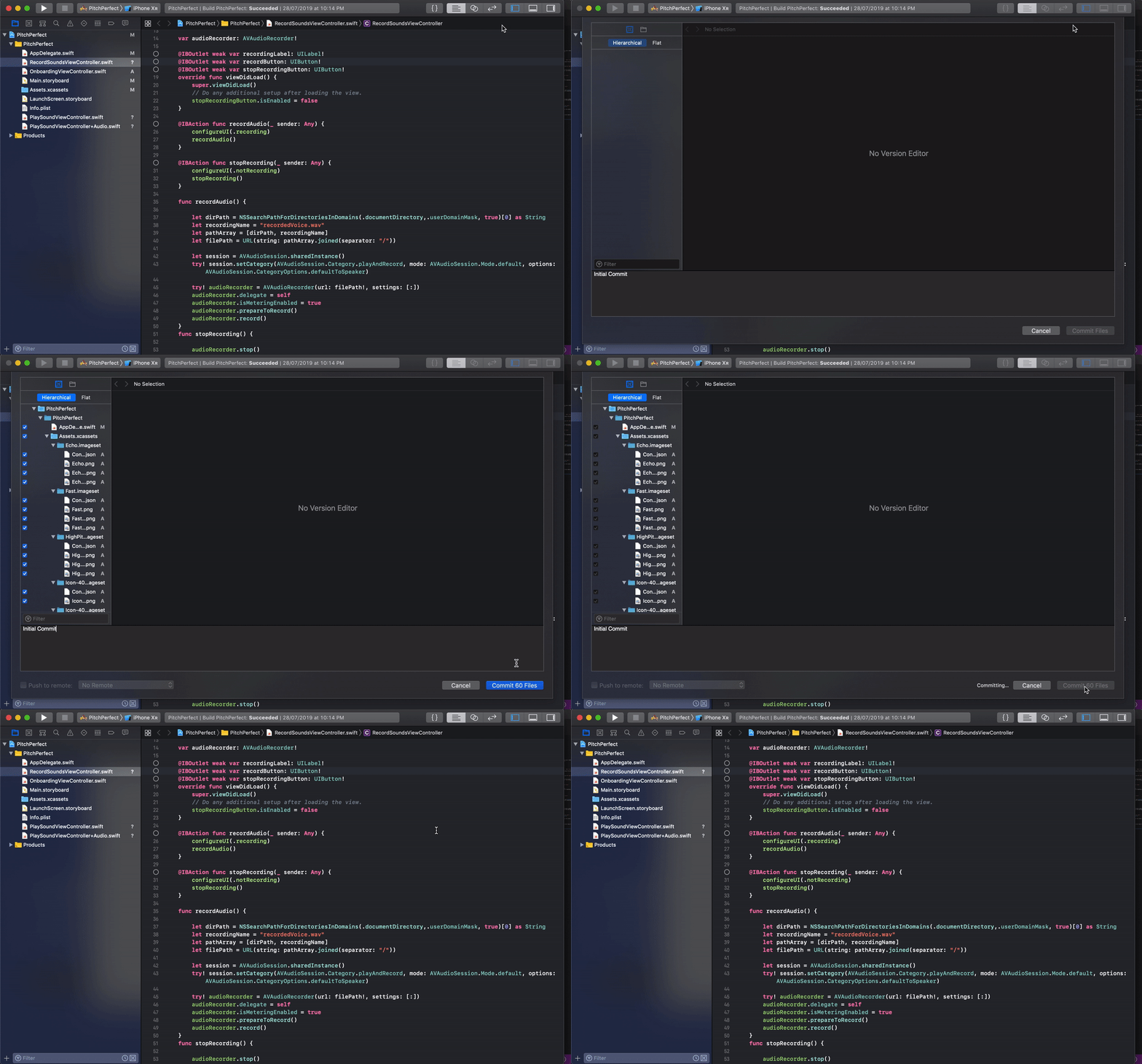
Are you done working on a cool feature and you want to make a commit. The first shocker most iOS developers have in XCode is the absence of a terminal. No big worries about that if you just want to make a commit. Just Press ⌥ + ⌘ + C
P.S: In case you may be wondering what the keyboard shortcut symbols means, here is a brief about the shortcuts used in this article.
⇧ - represents the Shift key
⌘ - represents the Command or Apple key
^ - represents the Control key
⌥ - represent the Alt or Option key